Edit the flowchart steps
Change recognized labels and resize each process box to fit your wording.
Turn a screenshot or sketch into an editable flowchart, ready for your next process update.
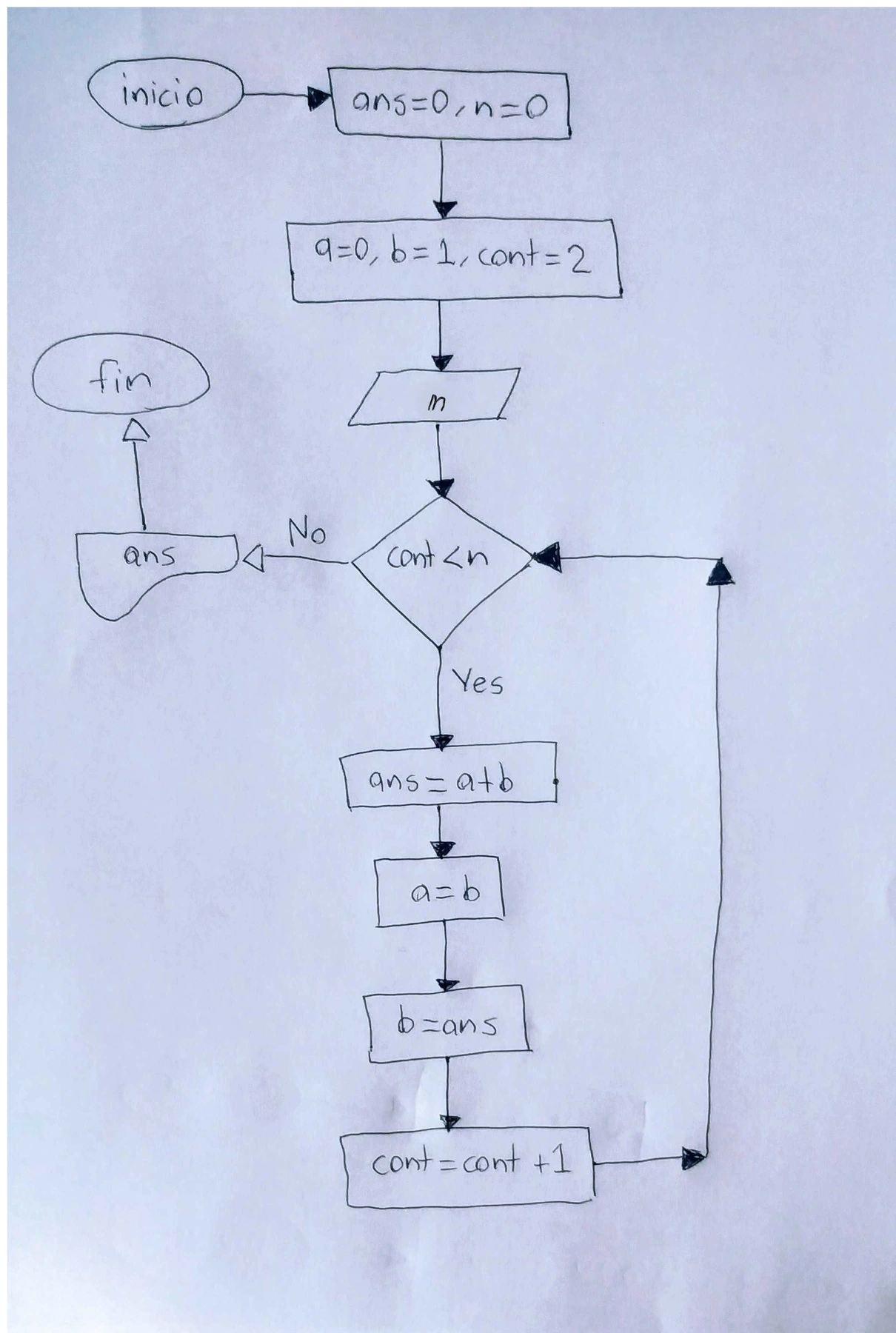
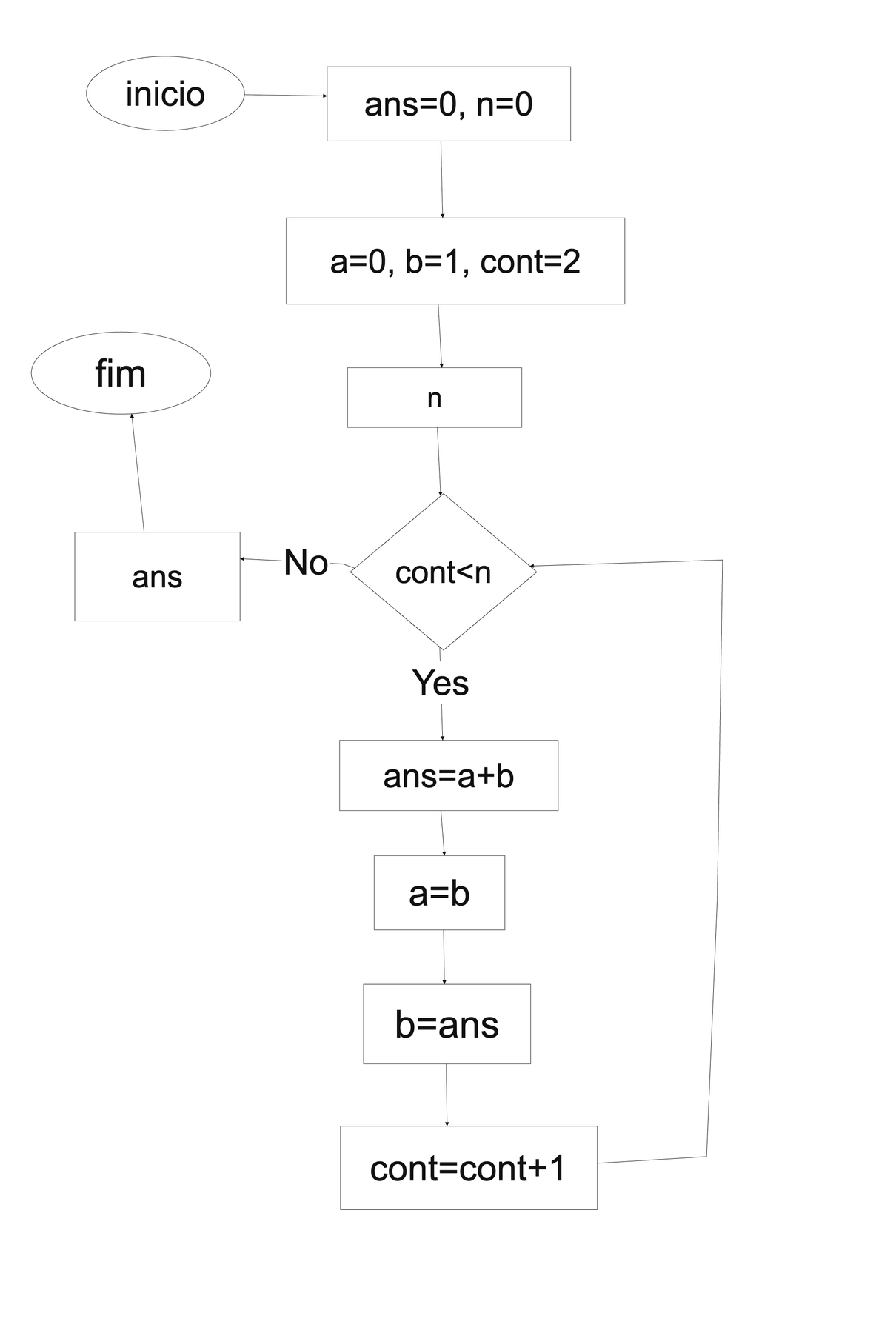
THE NEXT VERSION
A flowchart image can describe yesterday’s workflow clearly while leaving you unable to update it.
Review each branch against your image before updating the process.
Change recognized labels and resize each process box to fit your wording.
Review yes and no branches, return paths, and arrow direction.
Keep draw.io for editing, or export a visual for process documentation.
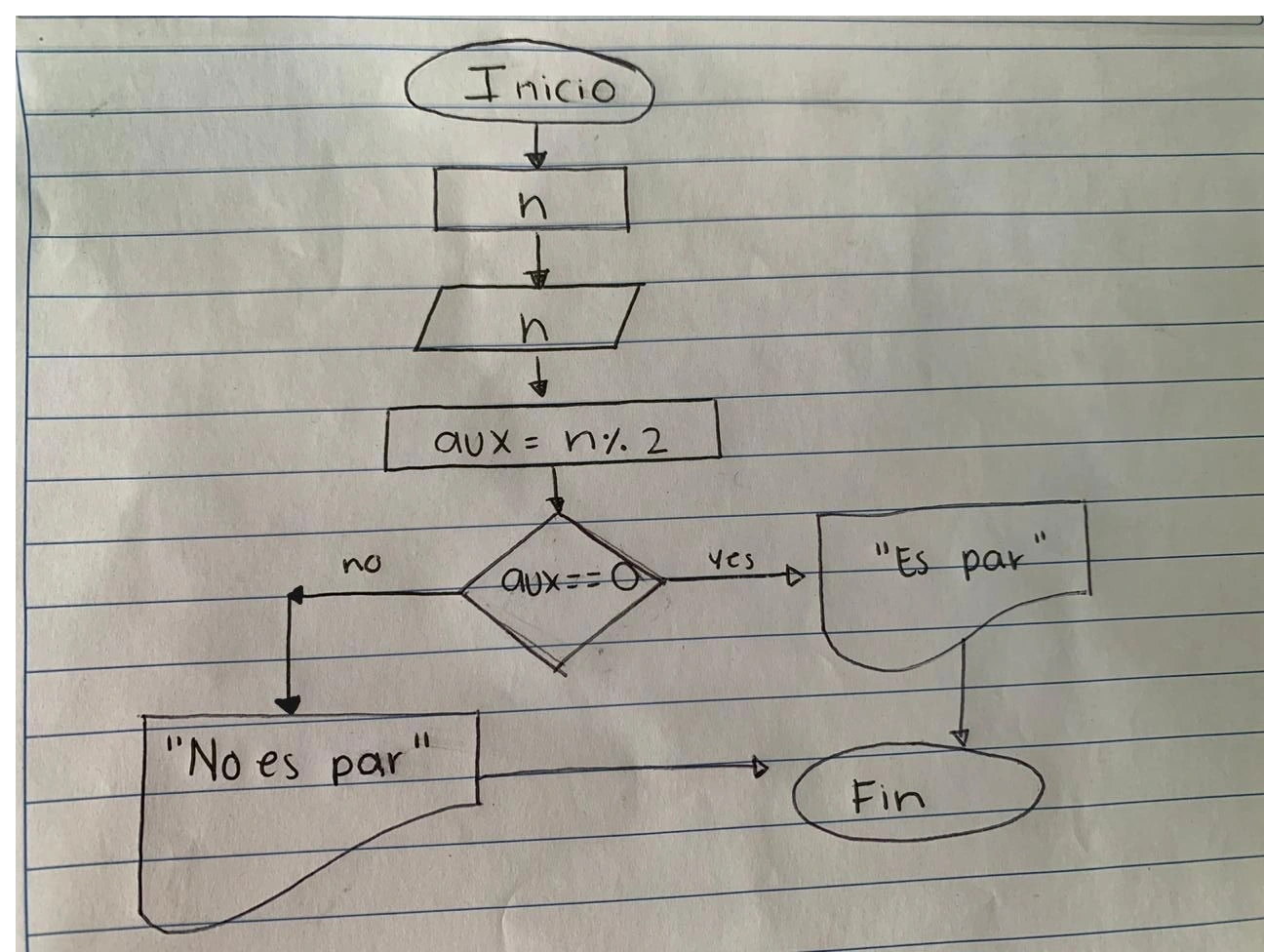
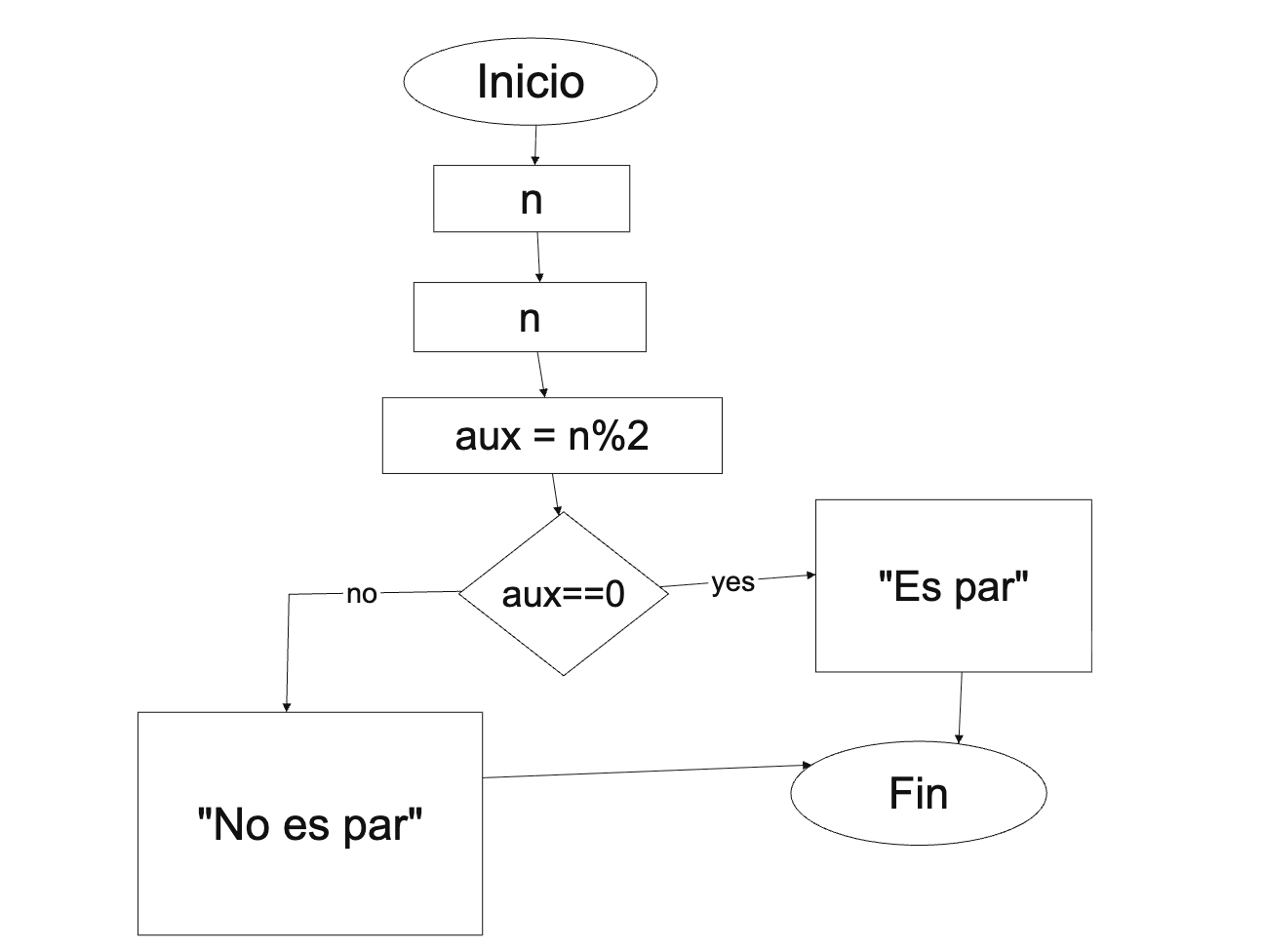
Recover a notebook diagram with a calculation, two branches, and a shared endpoint.
Review each label against the image before updating the diagram for your next explanation.
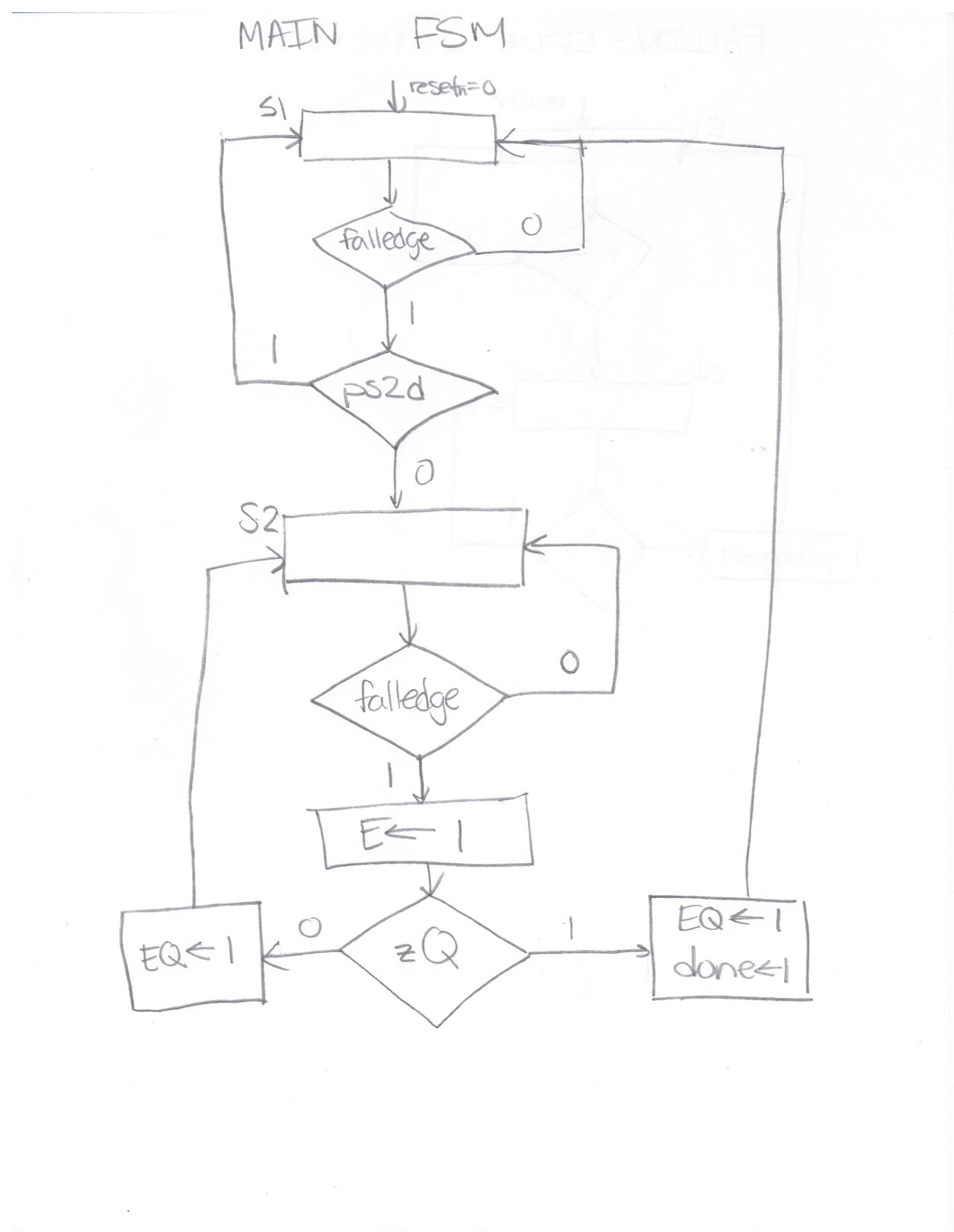
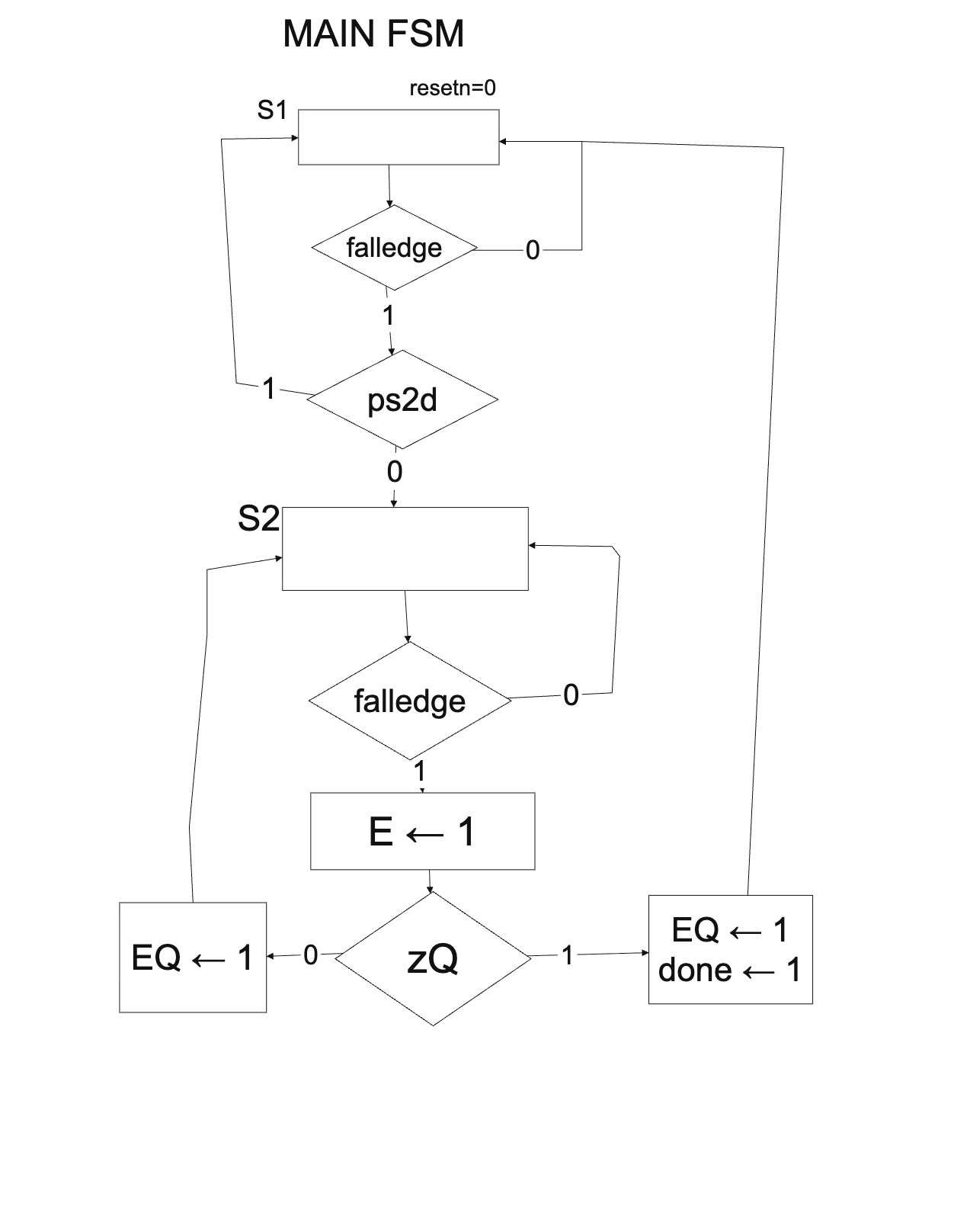
Recover a scanned flowchart with state transitions, decision branches, and several return paths.
Compare each flowchart decision with the image before adjusting a state or output label.
HOW IT WORKS
A flowchart from the converter can still contain a misread connection.
Check arrow direction, decision labels, and loops against the source.
Dense swimlanes and crossing connectors may need extra adjustments.
WHAT CHANGES AFTER CONVERSION
The converter helps recover the structure of a flowchart image.
It does not decide whether your process is complete or whether a business rule should change.
| Flowchart detail | Inside the image | After review |
|---|---|---|
| Step text | The instruction is fixed in the image. | Edit the recognized flowchart label to reflect the new action. |
| Decision branch | The yes or no route is only visible as pixels. | Inspect the branch label and reconnect an incorrect arrow. |
| Layout | Changing spacing means redrawing the image. | Move or resize flowchart boxes on the canvas. |
| Future edits | The image remains the only available reference. | Keep a draw.io source alongside the exported flowchart image. |
PUT YOUR PROCESS TO WORK
The image converter starts from a visible flowchart rather than inventing a process from a prompt.
Use it when the existing workflow is the reference you want to keep.
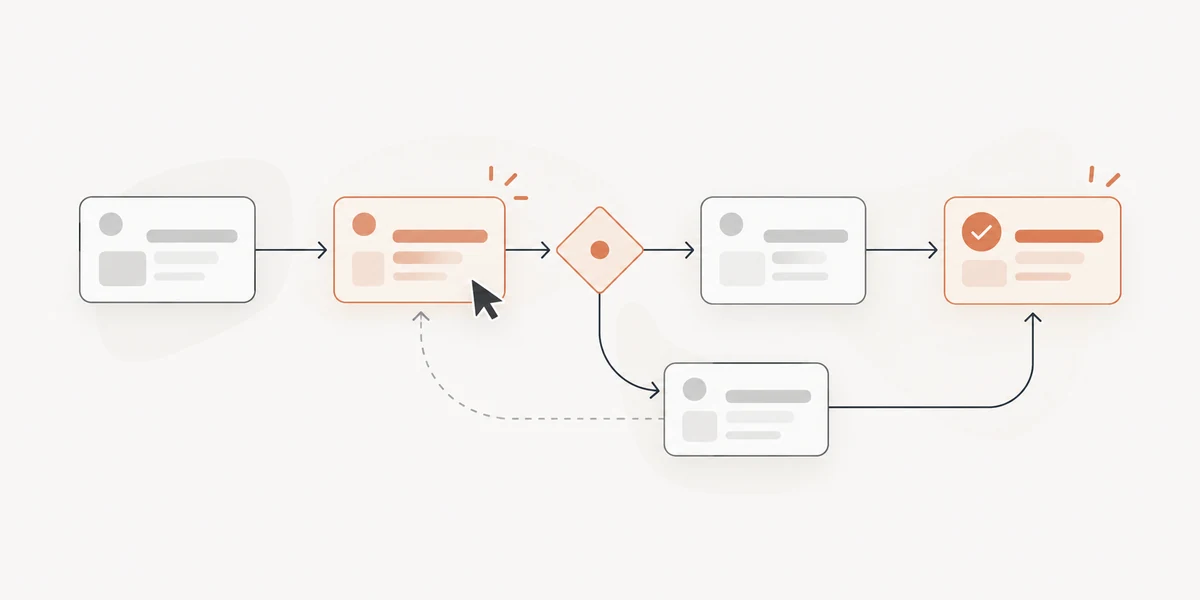
A help document contains a flowchart image with an outdated escalation step.
Give the support team a source they can revise again.
A teammate shares an image of an onboarding flowchart.
Discuss a specific flowchart change on an editable canvas.
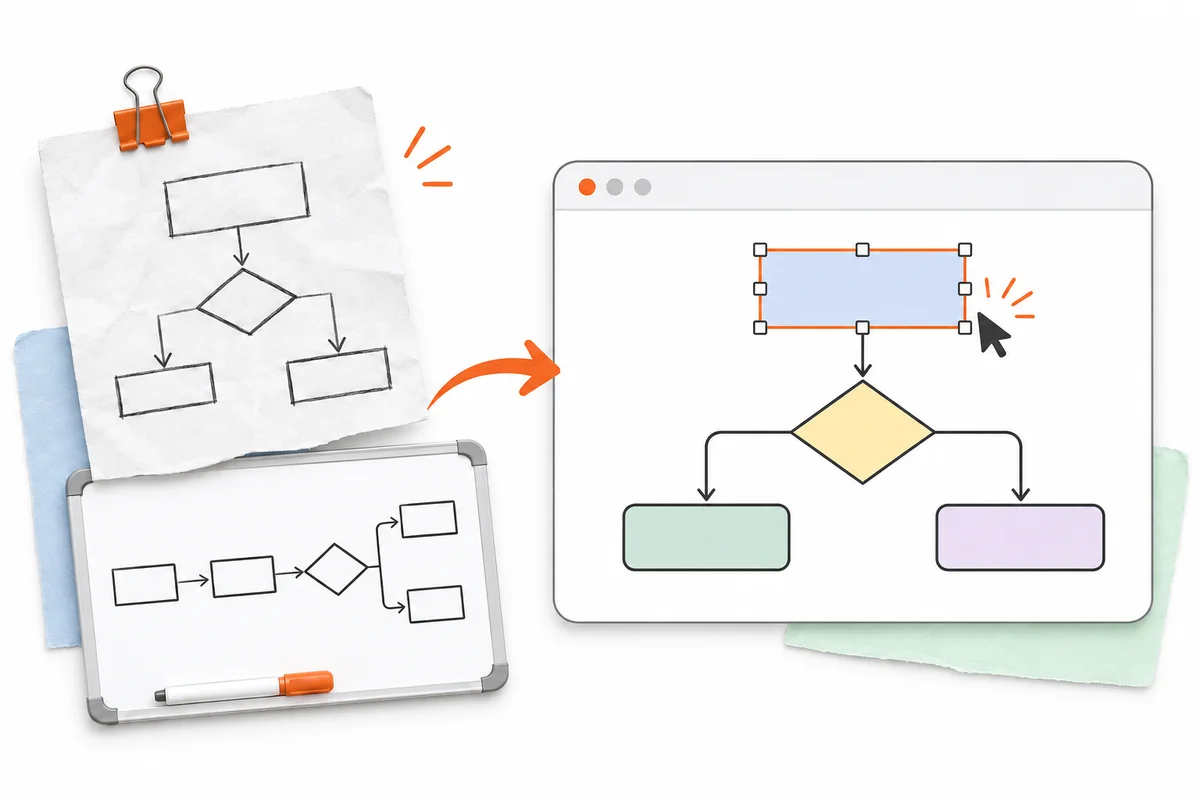
Start with an image of a hand-drawn flowchart.
Export a readable flowchart for your next lesson.
A SHORT PROCESS CHECK
Read the converted flowchart as if you were carrying out the task.
This helps you spot a mistaken connection that a quick visual comparison with the image may miss.
Confirm that every exit from a decision is understandable.
Compare the flowchart labels with the image, including small yes and no annotations.
Look for arrows that loop back, cross another line, or skip several steps.
Correct these before publishing the flowchart.
Send draw.io when someone needs to edit the flowchart.
Send a visual export when the reviewer only needs to read the process.
Yes. Upload a clear photo, then check handwritten labels and faint arrows against your original.
Start with a flowchart image, then edit its steps and connections. Text-prompt generation is not part of this tool.
Use PNG, JPG, or WebP up to 10 MB each. PDF input is not currently supported.
Yes. Sign in to upload, save, and revisit your diagrams. The editor runs in your browser.
Click Save before leaving. Export draw.io to keep editing, or SVG, PNG, or PDF for sharing.