Start from the PNG you still have
Start with a clear diagram export, screenshot, or image from documentation.
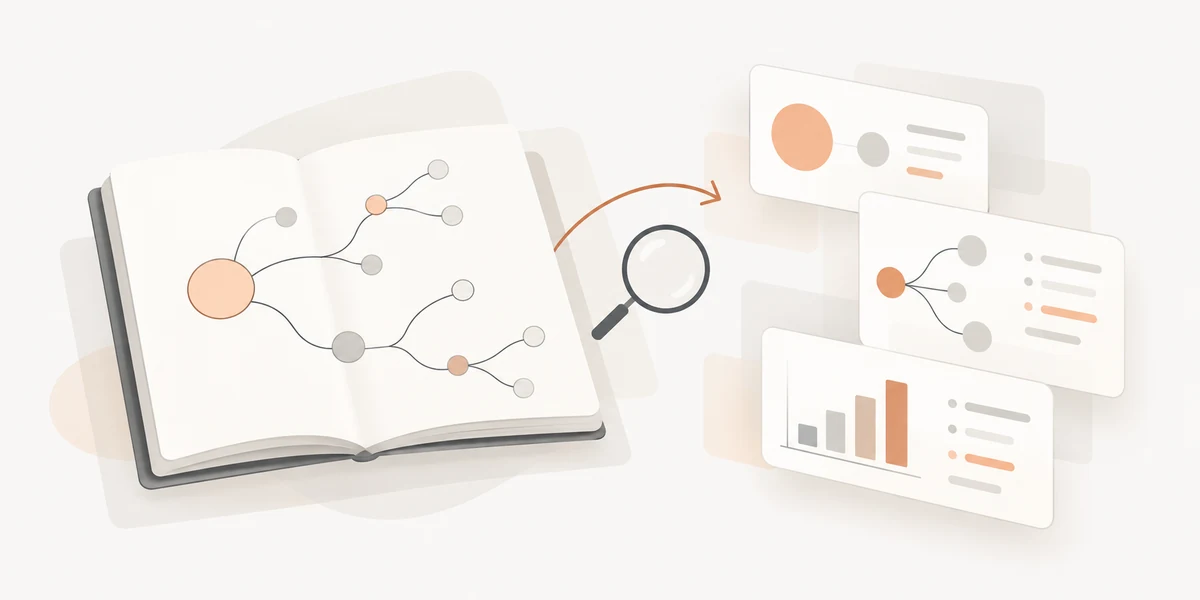
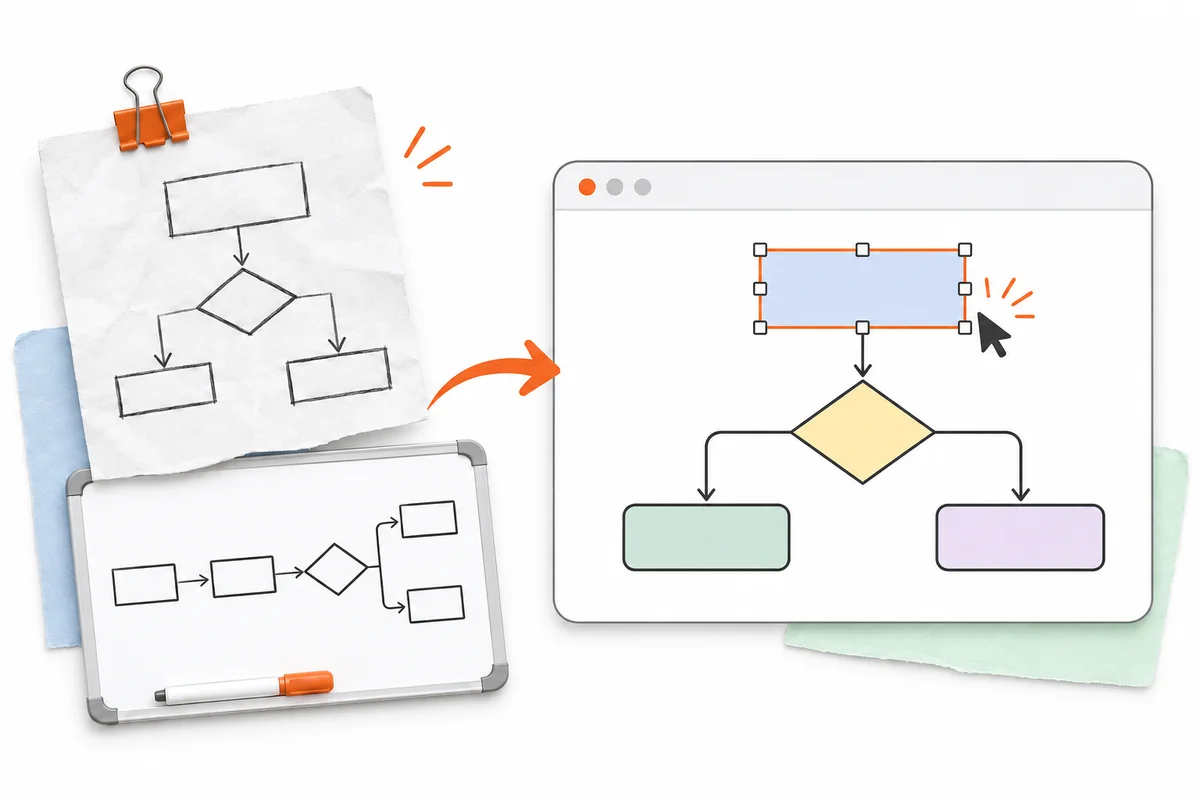
Turn a flat PNG into editable draw.io shapes, labels, and connections you can review online.
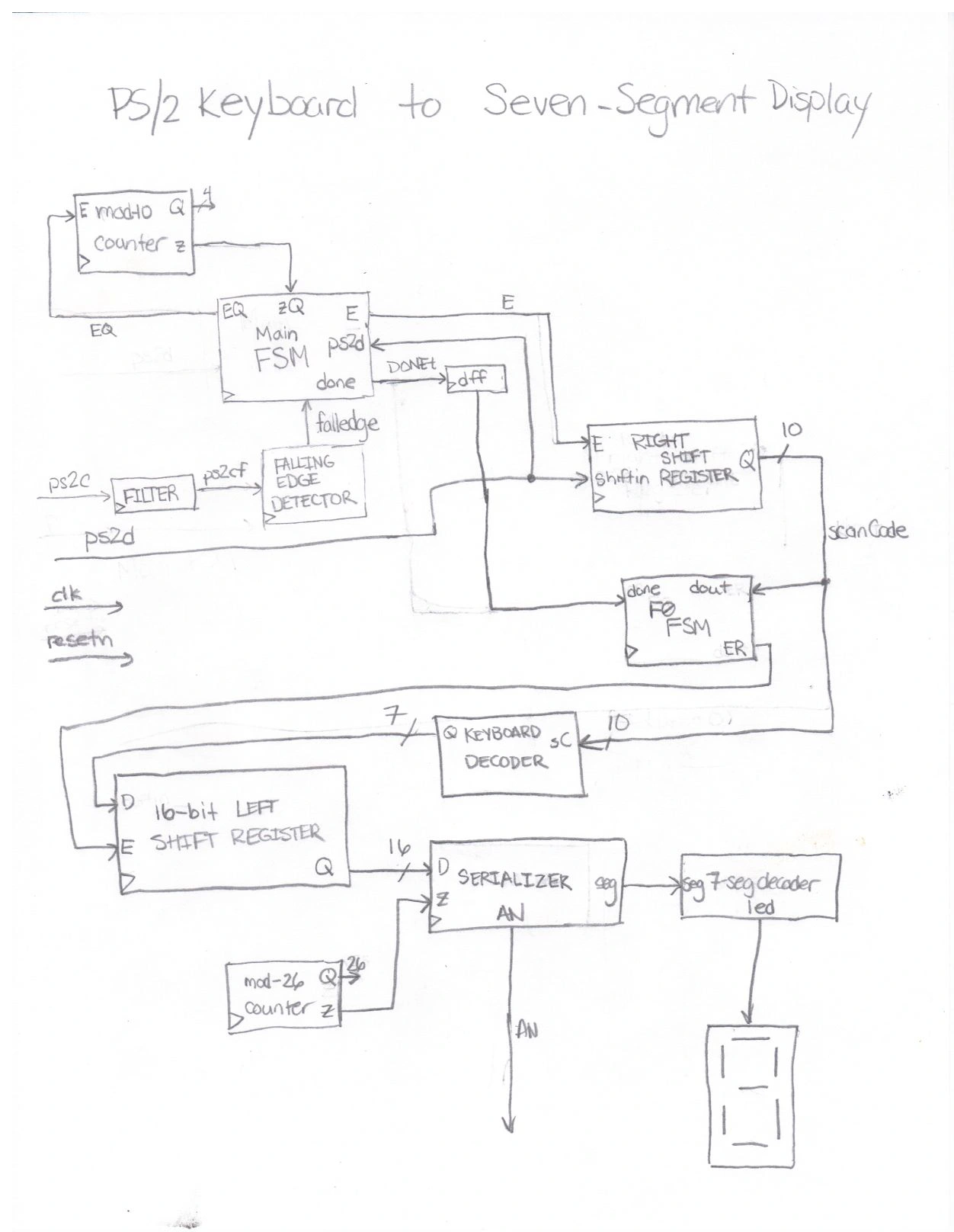
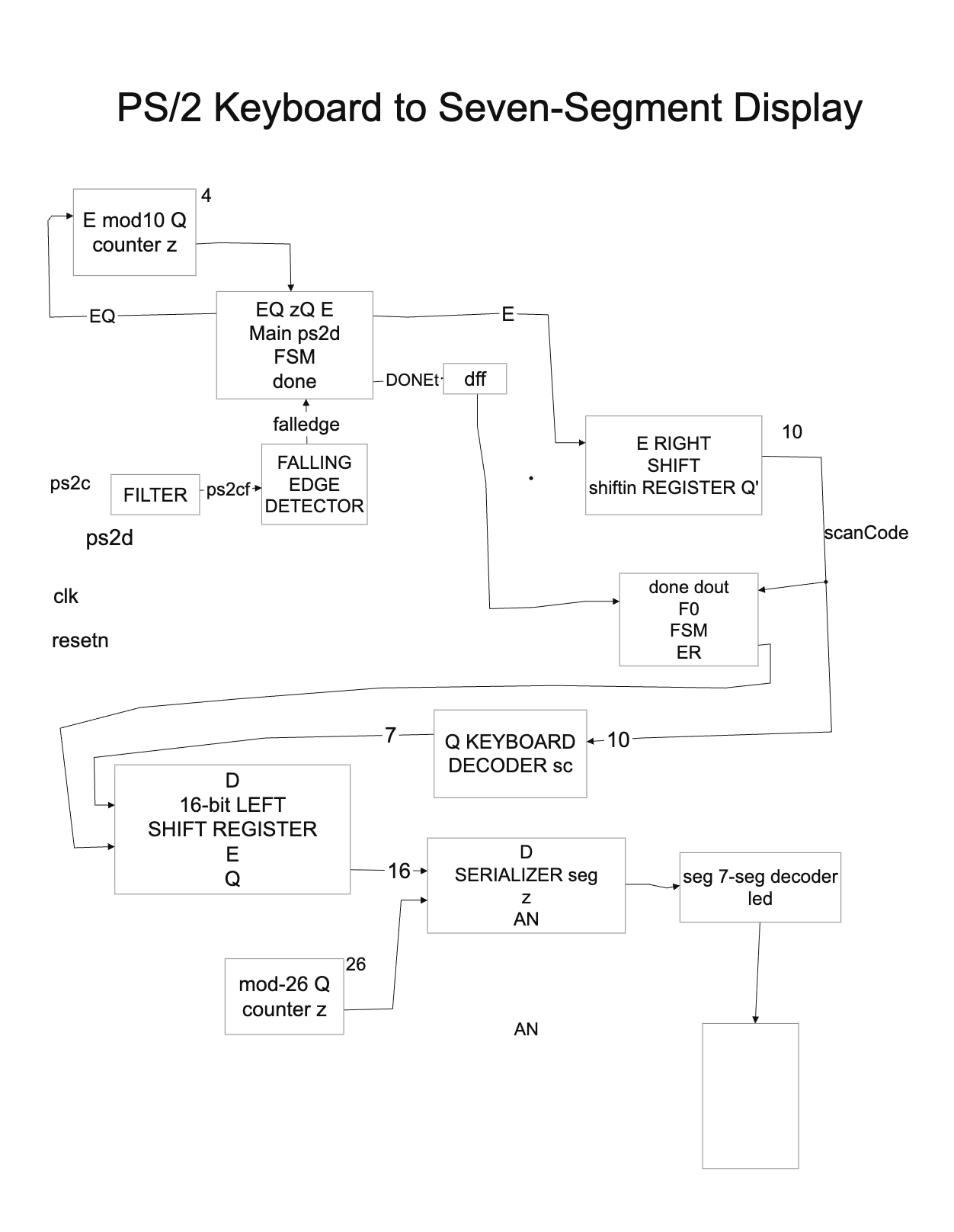
THE NEXT VERSION
A saved export is convenient to share.
When its source is missing, even a label change becomes difficult.
Rebuild the visible objects, check them against your PNG, and take the reviewed result into draw.io.
Start with a clear diagram export, screenshot, or image from documentation.
Recover editable draw.io shapes and labels from your source image.
Save a draw.io source so the next change starts with editable objects.
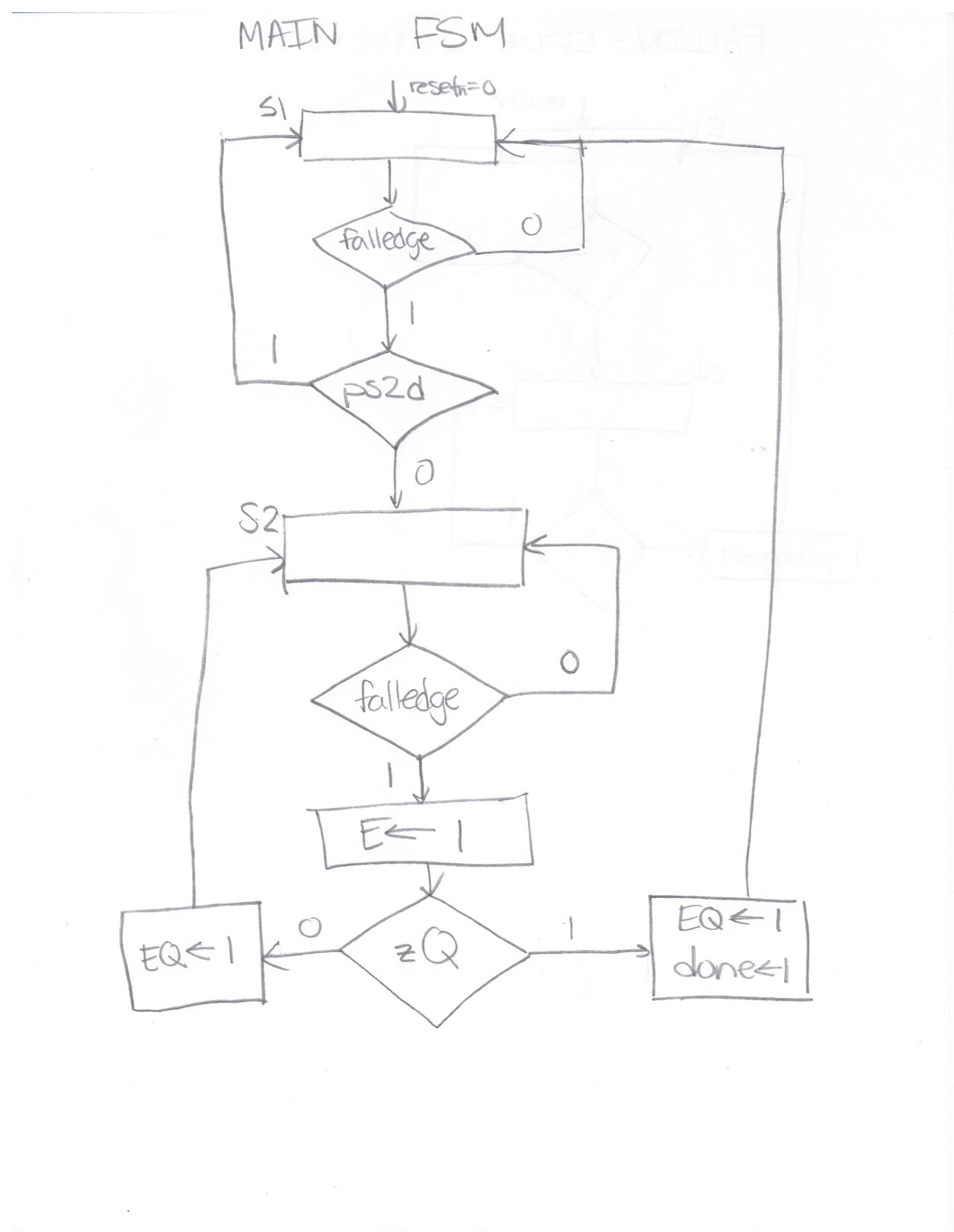
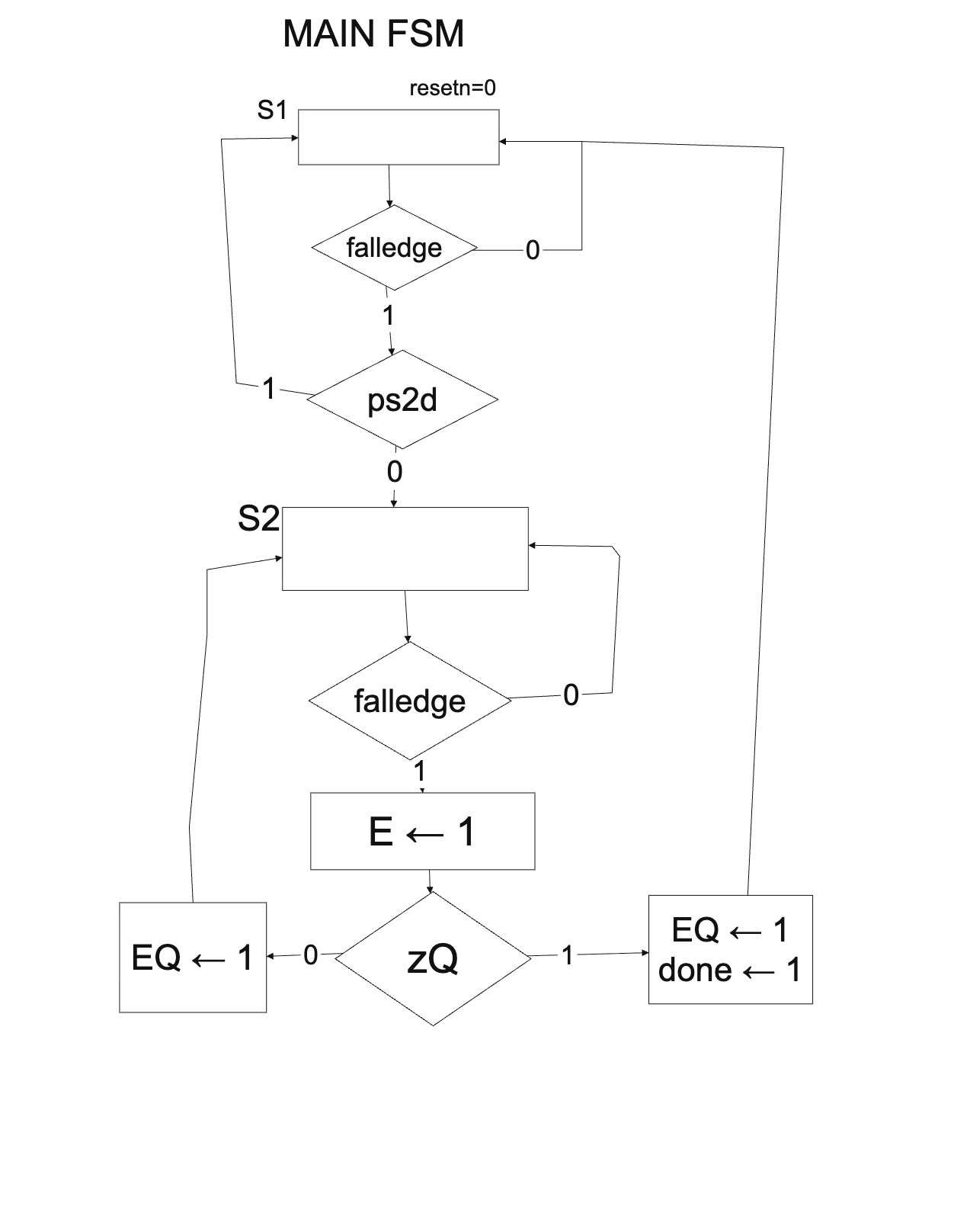
Recover a scanned flowchart with state transitions, decision branches, and several return paths.
Compare each flowchart decision with the PNG before editing the draw.io source.
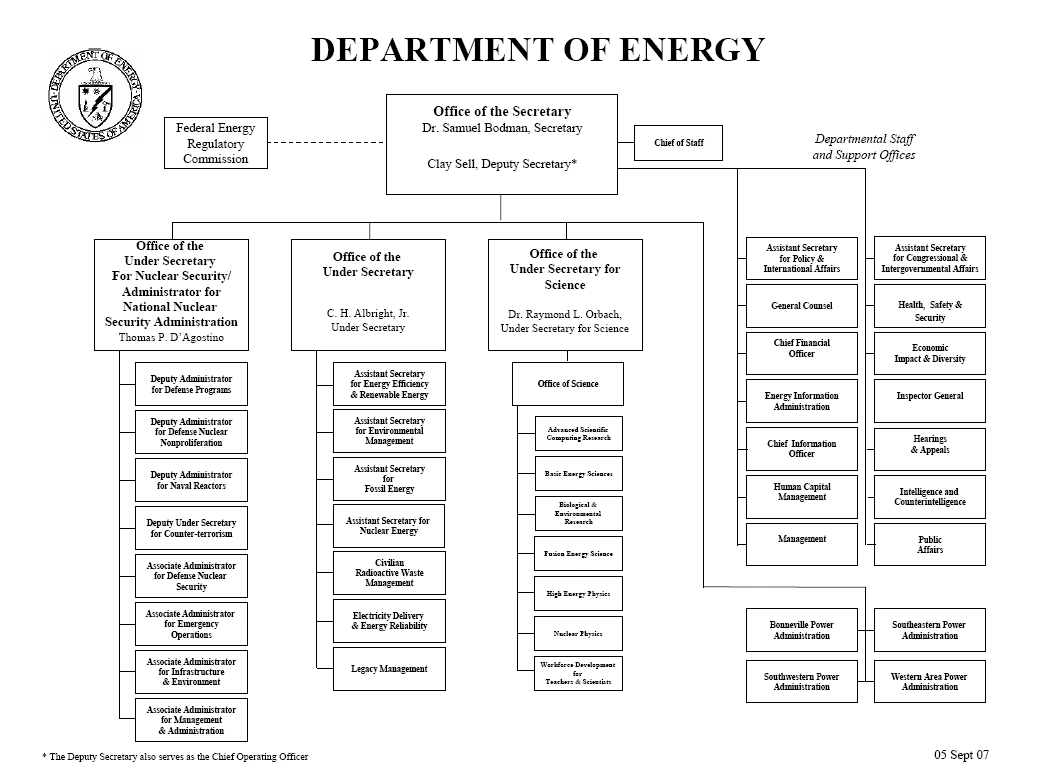
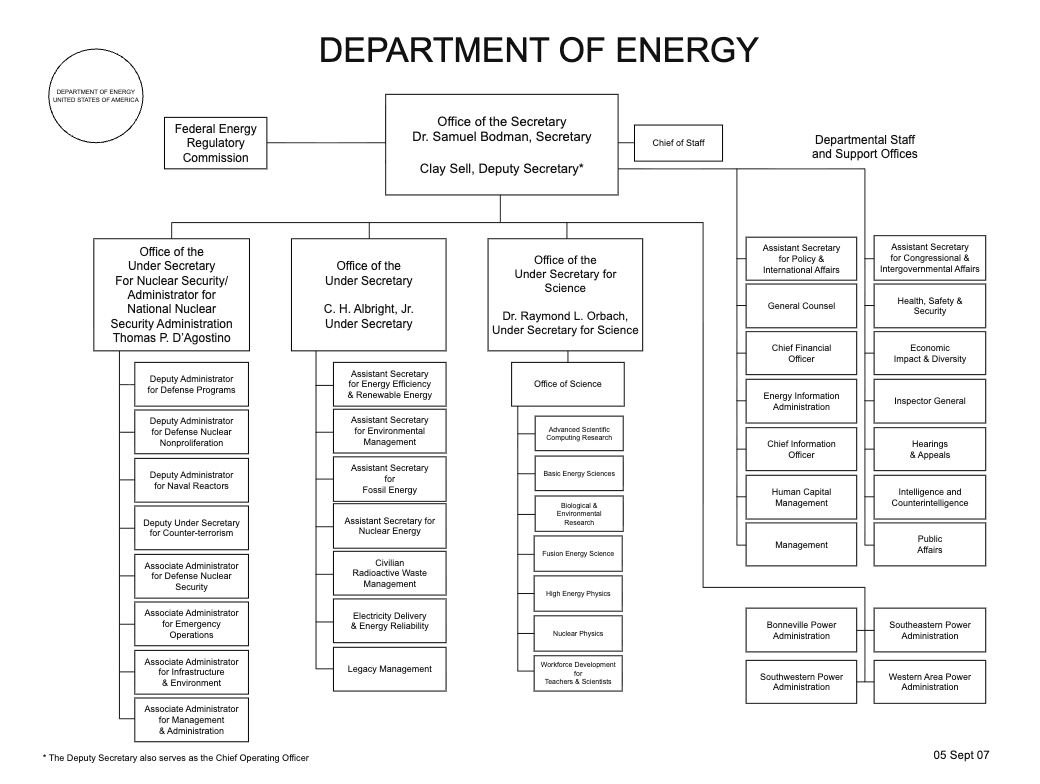
Recover an org chart image with several departments and multiple levels of reporting.
Compare the org chart labels and reporting lines with the image before updating a role.
HOW IT WORKS
Conversion rebuilds what is visible in the PNG.
It cannot retrieve hidden layers, cropped content, or the exact original file.
Avoid blurry screenshots and check small labels after conversion.
FIRST CHECK YOUR FILE
A PNG can carry embedded draw.io data, but the filename alone does not prove that it does.
Open the PNG in draw.io first to see whether its objects are already editable.
| What you have | First action | When to use the converter |
|---|---|---|
| PNG with source data | Open the PNG directly in draw.io. | Skip the converter if the diagram objects can already be edited. |
| Flat PNG export | Check whether draw.io shows it as one image. | Rebuild visible PNG content as a new diagram draft. |
| Screenshot PNG | Check that text is readable at its original size. | Use the converter when the source file is unavailable. |
| Blurry PNG | Look for a clearer export or a larger original. | Expect more manual correction if the PNG lacks detail. |
WHEN A PNG IS ALL YOU HAVE
Before using the PNG converter, try opening the file directly in draw.io.
Some PNG exports include editable diagram data; a flat PNG needs reconstruction instead.
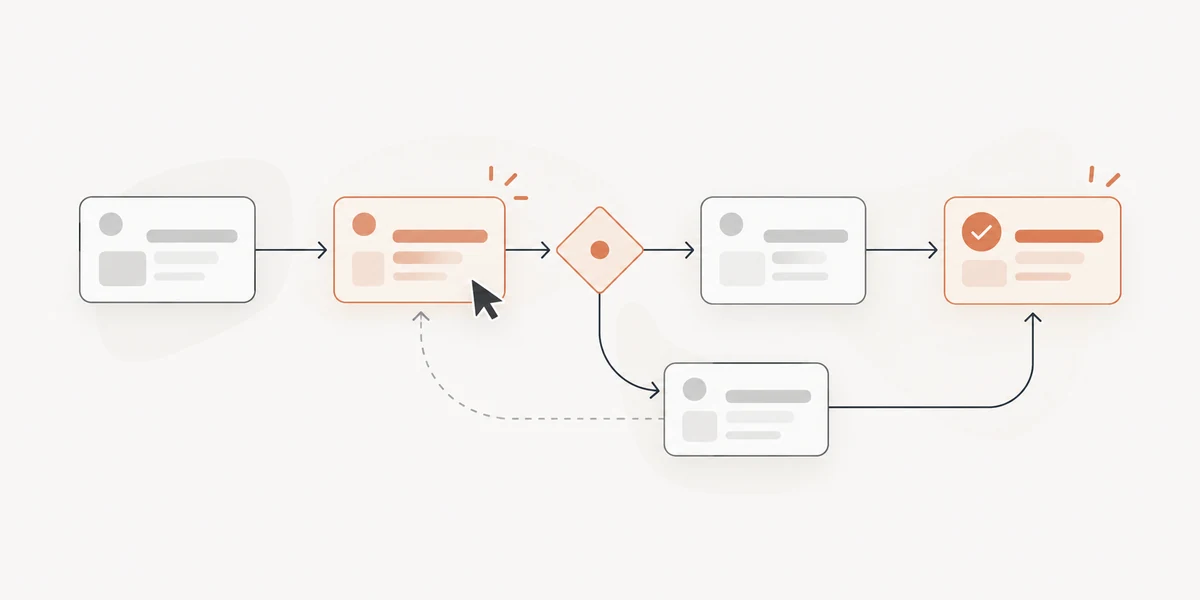
You find the final PNG but not its draw.io source.
Keep the new draw.io source with the project records.
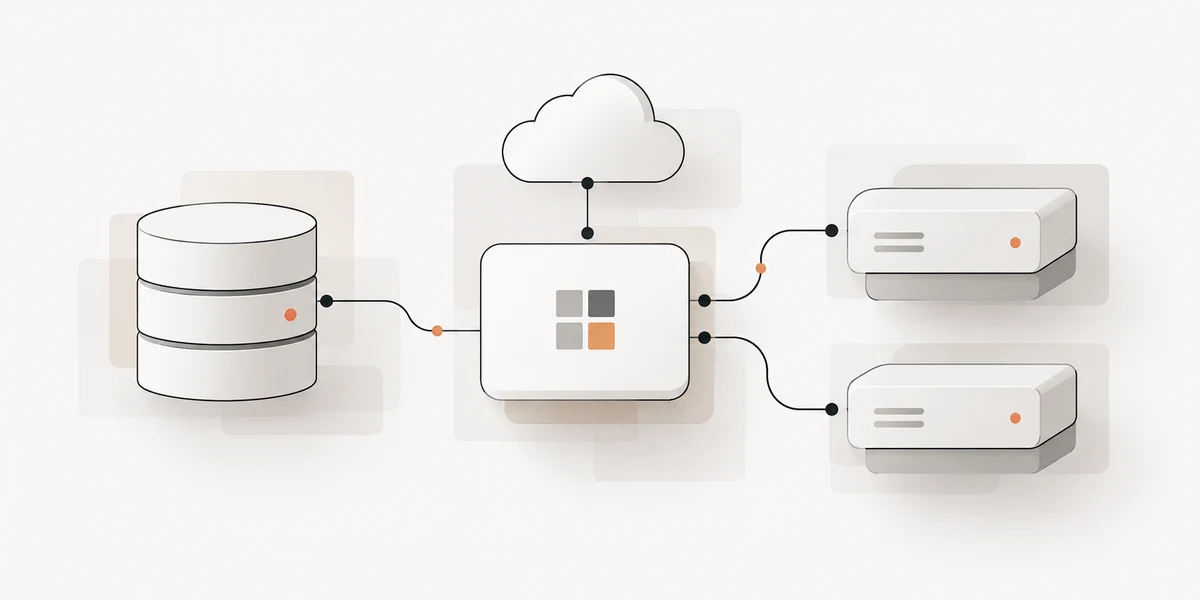
A teammate sends a PNG screenshot and asks for changes.
Send an editable draw.io file instead of another annotated screenshot.
Extract the clearest available PNG rather than taking a smaller screenshot of the page.
Compare the draw.io draft with the extracted PNG before sharing.
BEFORE YOUR NEXT DRAW.IO EDIT
A PNG can make nearby connections look joined when they only cross.
Inspect the result against the original PNG before deciding that the draw.io version is ready.
Check numbers and abbreviations in the PNG.
A clear-looking shape does not guarantee that the converter read every character correctly.
Follow each arrow in the PNG and confirm the same relationship in the draft.
Continue in draw.io if you need additional layout cleanup.
Click Save, export draw.io, and retain your PNG reference.
Keep an editable copy so the next change does not need another reconstruction.
A flat PNG contains pixels rather than editable objects. Rebuilding it gives you separate shapes and labels.
Try opening it in draw.io first. A PNG with embedded diagram data may already be editable.
Yes. JPG and WebP are also supported. Use the clearest original available for the best starting point.
Use PNG, JPG, or WebP up to 10 MB each. PDF input is not currently supported.
Yes. Sign in to upload, save, and revisit your diagrams. The editor runs in your browser.
Click Save before leaving. Export draw.io to keep editing, or SVG, PNG, or PDF for sharing.